
What are roles and why are they needed?
In traditional messaging apps, identity is always linked to a specific person. When you message someone, you see a name. When you chat in a group, you see a list of names. That’s sufficient for many situations. But not for organisations where it’s not just the name that matters, but also the role that person currently holds.
A police officer on patrol communicates differently from the same officer when on desk duty. A nurse on Ward 3 also takes on on-call duty at lunchtime. A maintenance technician is part of Shift Group A in the morning and part of an on-call team in the evening. Their names remain the same, but their operational responsibilities change.
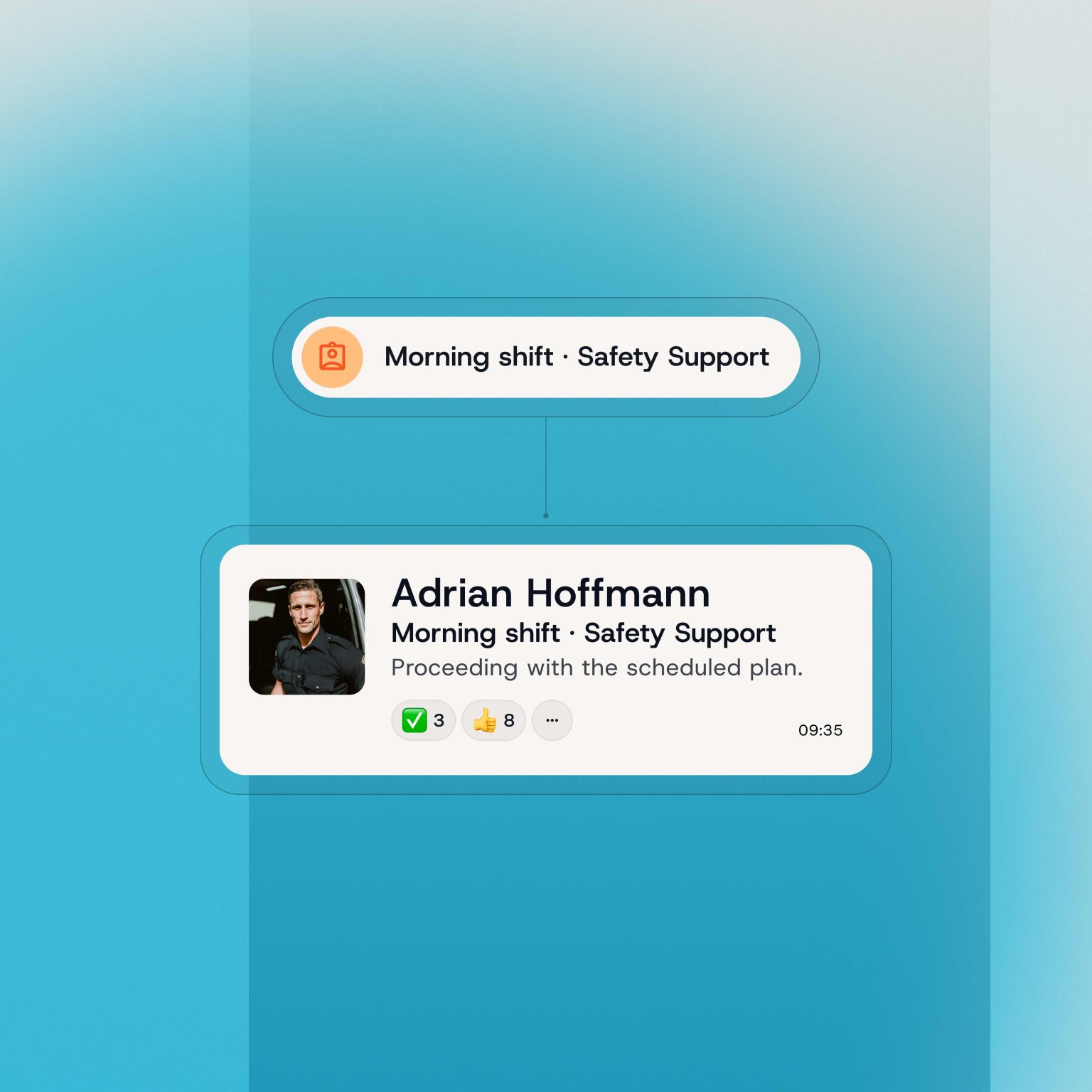
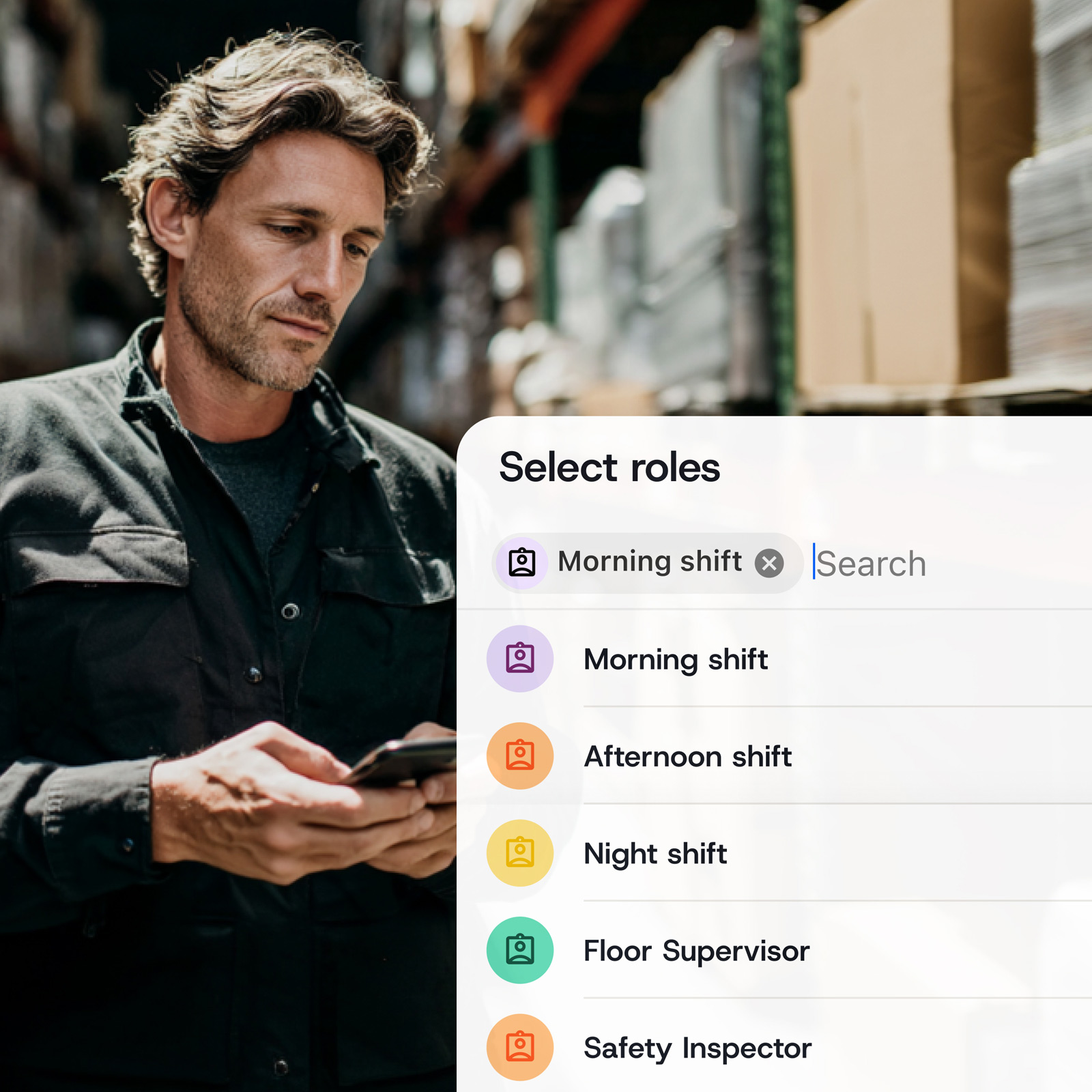
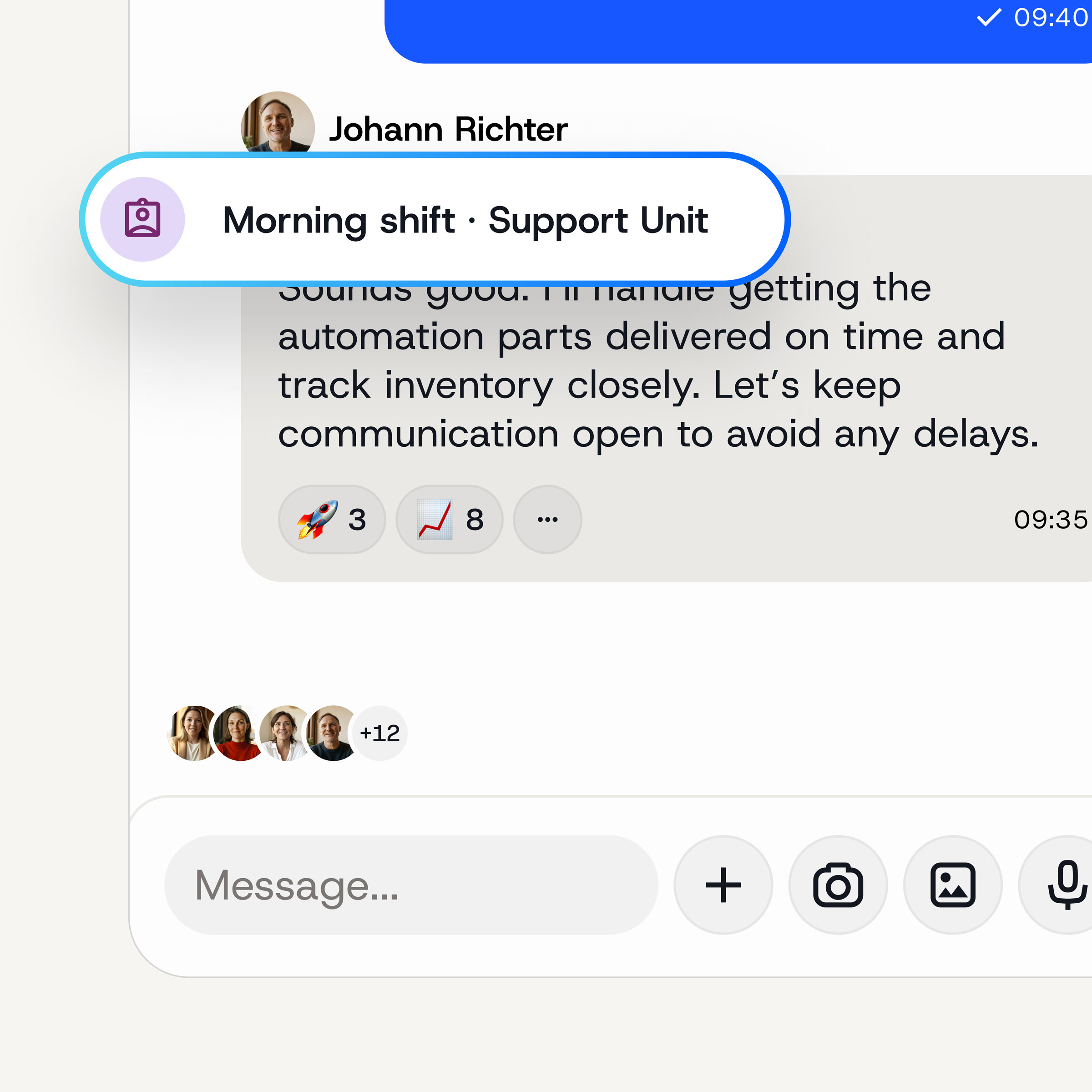
This is exactly where Teamwire’s role concept comes in. Roles are operational identities: temporary roles that employees can adopt in addition to their personal names – for the duration of an assignment, a shift or a task. And they are visible throughout the app: in chat, in profiles, in the directory and on the map.
The result:
Everyone knows straight away who is communicating and in what capacity. No need to ask for clarification. No manual coordination. No admin intervention.
How roles work in practice
Take on roles
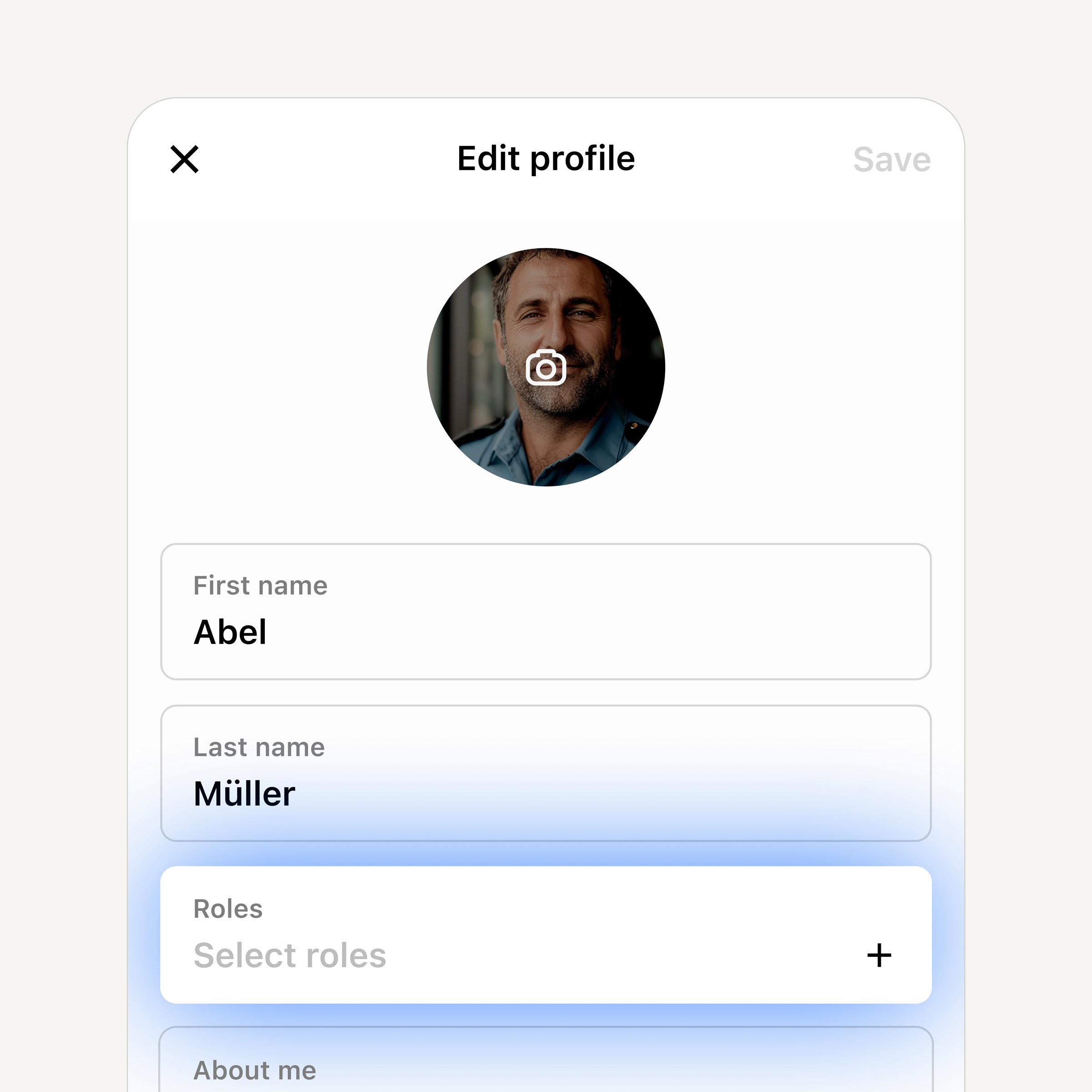
Once the dashboard admin has enabled the role system and created roles, employees will be able to view them in the Teamwire app – either when they log in, if the admin has set up a reminder, or at any time by going to their profile section under Account → Edit profile → Roles.
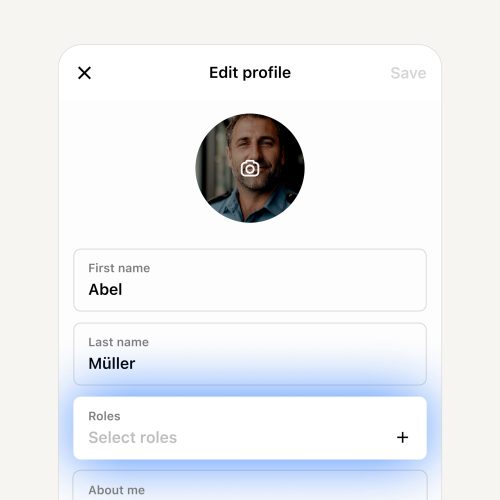
There, staff can see all the roles available within the organisation. Public roles can be accepted immediately – without approval or further consultation. Restricted roles are also visible, but are marked with a padlock icon. They can only be accepted by staff whom the admin has explicitly added to an approval list.
The moment a role is accepted, the person is automatically added to all group chats associated with that role. No manual invitation. No waiting. You’re in straight away.
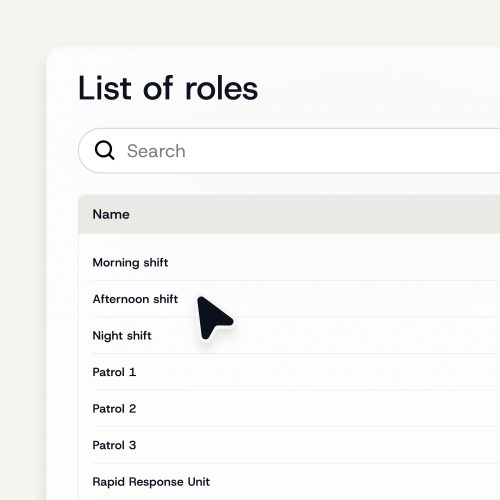
Multiple roles at the same time
Depending on the administrator’s configuration, a person can hold up to three roles at the same time. This is particularly relevant in situations where someone has several concurrent responsibilities: for example, a technician who is part of both the North maintenance team and an on-call service. Both roles are visible in the profile. Both chats run simultaneously.
Put the roles down
Stepping down from a role is just as simple as taking it on. Here, too, the effect is immediate: the person is automatically removed from all chats associated with that role. The other members of these chats are not affected. The chat history remains fully intact for the remaining members.
Address the role directly – without knowing the name
You don’t always know who currently holds a particular role. In Teamwire, that’s no problem:
Simply send a message to the role or add it to the chat, and the message will automatically be sent to the staff member currently assigned to that role. Whether it’s the person on Police Patrol 3, the one on call, or the night shift supervisor – Teamwire knows. No searching. No asking around. Always the right person.
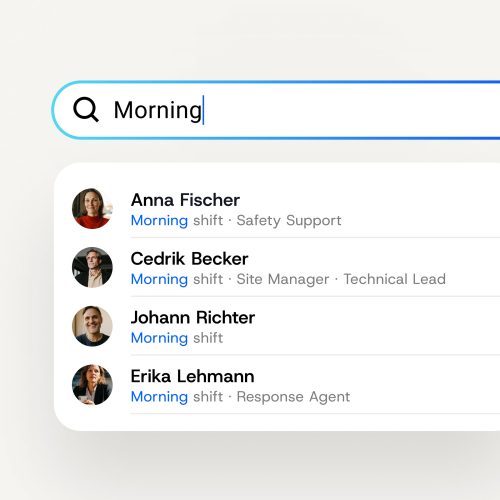
Reminders
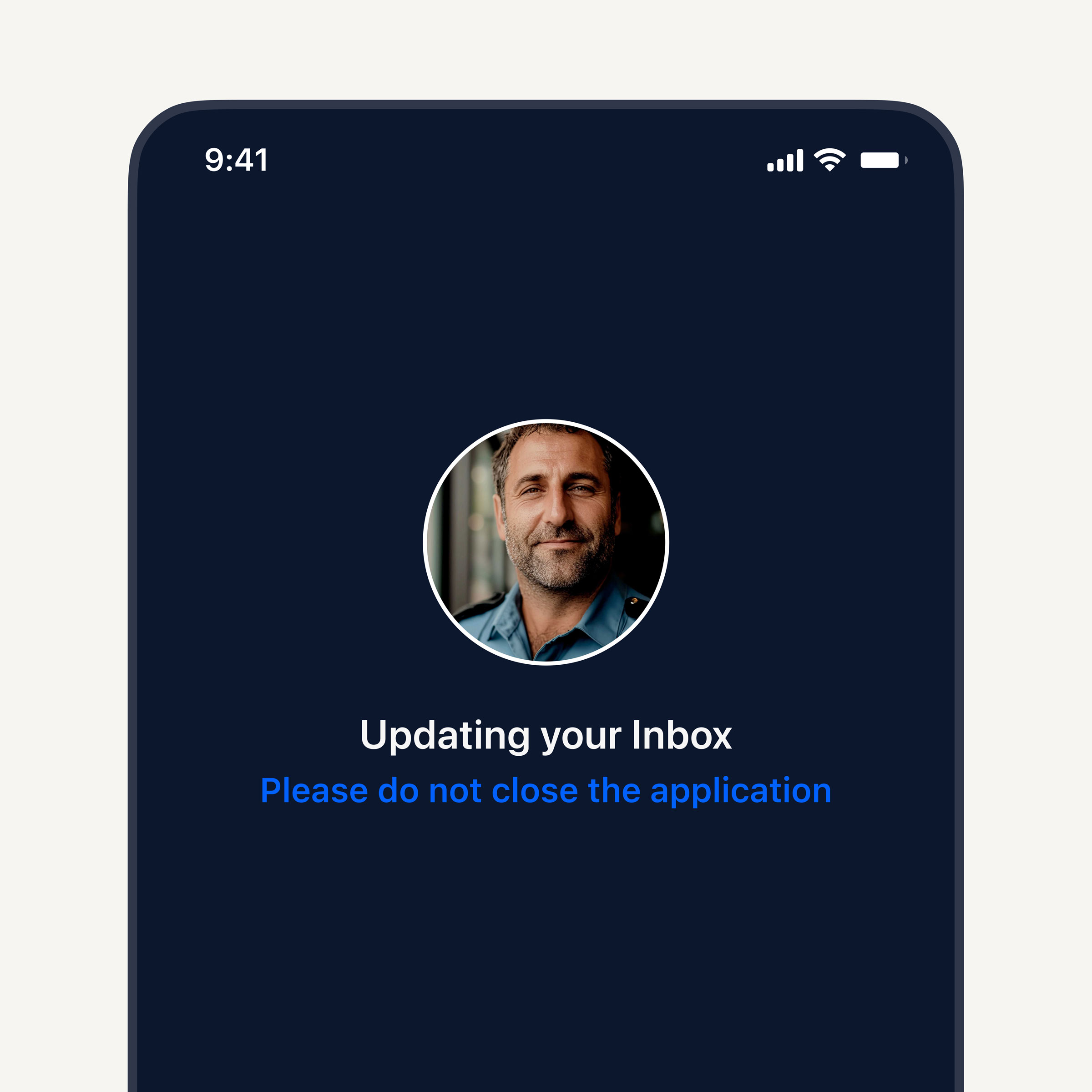
The administrator can optionally set up reminders prompting staff to check and update their roles. Two options are available, and both can be active at the same time:
With the first option, a screen prompting you to update your role appears every time you log in; you can skip it.
With the second option, the same screen appears when the app is opened a certain amount of time after the last scroll update.
This is particularly useful in shift-based operations, where staff are automatically reminded to set their current role when they start their shift. Both of the options mentioned above can be enabled at the same time.
Teamwire roles are visible throughout the app
Roles are not a standalone feature. They are integrated throughout the entire Teamwire application.
Profile
When you open a colleague’s profile, you can see their current roles – instantly and without having to ask. Up to three roles can be displayed at the same time. This makes it easier to find your way around, particularly in large organisations where you don’t know everyone personally.
In the directory
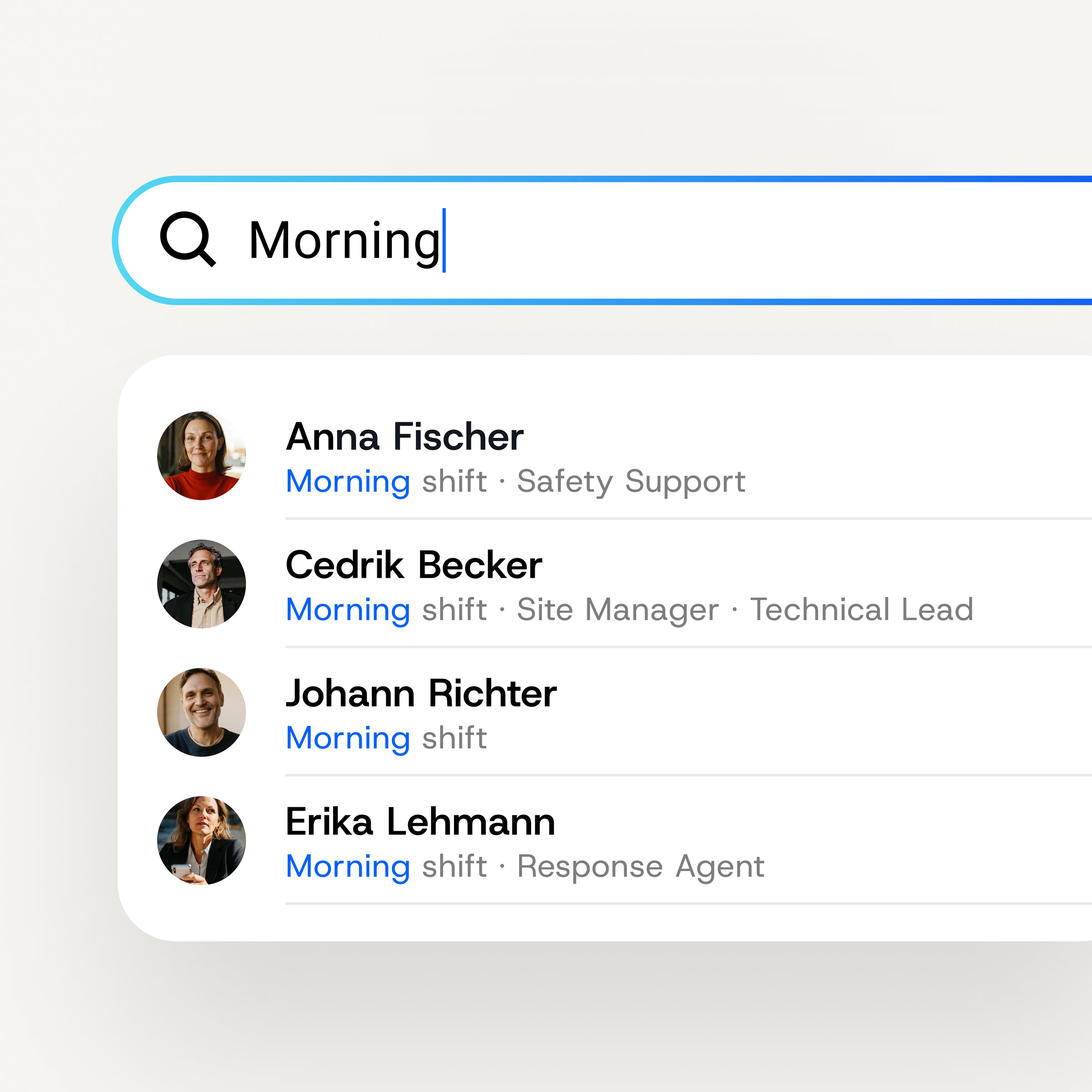
The ‘Roles’ tab in the directory shows all the roles available within the organisation. If you tap on a role, you can immediately see which staff members currently hold that role. This is particularly useful for shift supervisors or operations managers: instead of phoning someone or checking a spreadsheet, you can simply open the directory and see who is currently assigned to each role.
In the group chat
When creating a new group chat, roles can be added just as easily as individual contacts or circles. All current members of the role are automatically included. If the role membership changes, the chat updates automatically.
And if you don’t know who currently holds a particular role, simply type in the role – Teamwire will automatically connect you to the person currently responsible. No searching. No asking around. Always the right person.
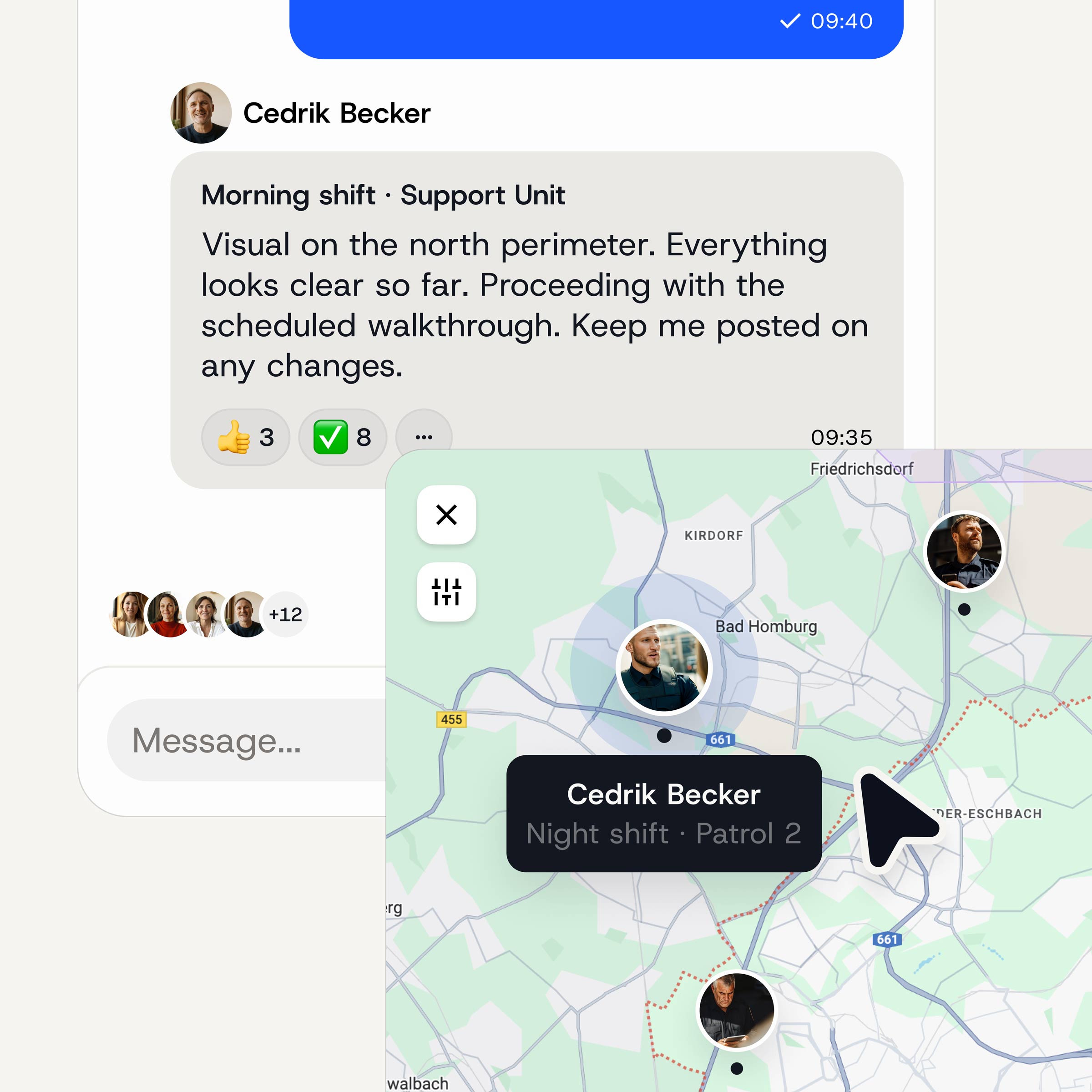
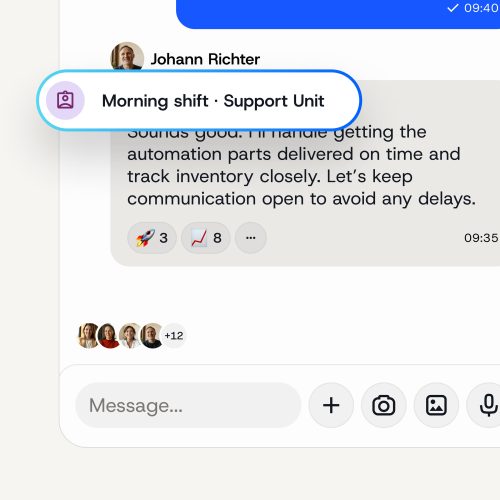
Each message also displays the role the sender held at the time of sending. Even if the role changes later, this historical context is retained. This is not only practical but also audit-proof: Teamwire provides audit logs for chat histories, so it is documented who communicated, in what capacity, and when.
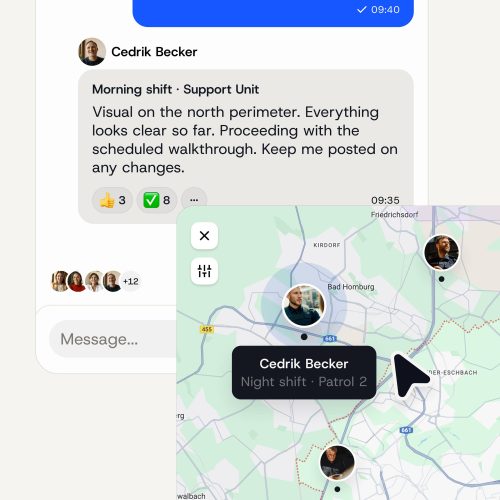
In the live location view
Anyone who shares their location in a group chat will appear on the map not only with their name but also with their current role. For coordinated operations – such as the police, fire service and field staff – this offers significant added value: you can see at a glance who is where and in what capacity.
Handing over roles: seamless communication
One of the strongest aspects of the role concept is the seamless handover. When someone steps out of a role and another person takes on that same role, they do not merely assume the function but also the entire communicative context.
The new person can immediately see the full chat history for all roles. All outstanding issues, all ongoing discussions, the full context – it’s all there. It’s as if there had never been a break.
This solves a problem that many organisations are familiar with: knowledge is lost when shifts change. New staff members first have to find their feet, ask colleagues questions and read through notes. With Teamwire roles, this is no longer necessary. The chat acts as the role’s memory – not the individual’s.
And details of who communicated with whom, when and in what capacity are documented in an audit-proof manner. Teamwire maintains audit logs of chat histories – a crucial advantage for organisations that need to document their communications in a traceable and legally compliant manner.
Public vs. restricted roles
All roles are visible to all members of the organisation. This is by design, so that everyone knows what roles exist and who currently holds them. The difference lies in access:
Public roles can be freely taken on by any employee. No admin intervention, no approval required. Ideal for shifts, departmental teams or project groups where openness is desired.
Restricted roles are also visible, but are only accessible to staff on an access list maintained by the administrator. Anyone not on the list can see the role but cannot accept it. Ideal for sensitive units such as special operations teams, internal investigation teams, senior management or other areas where not everyone should have access.
A specific example from police work:
The “Undercover Unit” role is visible to all officers in the directory. However, only authorised officers can accept it. The associated “Undercover Ops” chat is accessible exclusively to members of this role. No one else can see either the chat or its contents.
This gives organisations maximum flexibility: openness where it makes sense and strict access control where necessary.
Roles vs. circles: When to use which?
Teamwire users are already familiar with circles as a way of organising user groups. Roles are not a replacement; they are a complement. The two concepts address different issues.
| Role | Type | Who is eligible for the role? |
| Early shift | Public | Every officer on the early shift |
| Afternoon shift | Public | Every officer on the afternoon shift |
| Late shift | Public | Every officer on the late shift |
| Undercover Unit | Limited | Authorised officers only |
| Operations Management | Limited | Authorised senior officers only |
The rule of thumb:
Circles for departments and permanent teams. Roles for everything that changes regularly – shifts, task forces, project teams, on-call duties.
Important to know:
Circles and groups are not mutually exclusive. When creating a group chat, both can be added as participants simultaneously.
Technical note:
Teamwire roles are only compatible with the “Internal Only” privacy setting. They do not work with “Circle Only”, “Address Book Only” or “Internal and External”. If you wish to use roles, you should check this setting in the dashboard beforehand.
Important note for existing customers: The existing "Role" field is now called "Job title"
Anyone who has been using Teamwire for some time will be familiar with the "Role" profile field – a simple text box where employees can enter their position within the company. With the introduction of the roles concept, this field has been renamed "Job title". The reason: potential for confusion. The new role concept is a standalone feature with its own logic and implications for communication. To ensure clarity, the following applies with immediate effect: ‘Job title’ is the static profile field. ‘Roles’ is the new feature for operational identities.
Let’s put it into practice: roles, using the police as an example
The police are on duty around the clock, working in rotating shifts and with several specialist units. Officers clock in for duty, log in to Teamwire and are automatically assigned to the communication channels designated for that shift, without the need for a dispatcher or administrator to intervene.
The administrator defines the roles
In the dashboard, the admin sets up all roles once – from public shift roles to restricted special units:
| Role | Type | Who is eligible for the role? |
| Early shift | Public | Every officer on the early shift |
| Afternoon shift | Public | Every officer on the afternoon shift |
| Late shift | Public | Every officer on the late shift |
| Undercover Unit | Limited | Authorised officers only |
| Operations Management | Limited | Authorised senior officers only |
Chats linked to each role (created once by the administrator)
The administrator sets up all the chats once – they are then updated automatically. In the case of the police, for example, this might look like this:
| Chat | Participant roles |
| Morning briefing | Early shift |
| Handover | Morning shift + afternoon shift |
| Recent incidents | Early shift + afternoon shift + late shift |
| Undercover investigations | Undercover Unit |
| Operation in a “critical large-scale incident” (e.g. a shooting rampage) | Operations management |
Typical scenarios in day-to-day police work
Teamwire roles are designed specifically to make day-to-day life easier for the police and to optimise operational communications.
| Who / When | What happens |
| Police officer Markus Bauer starts the early shift | He opens the app, sees the login reminder and selects the “Early shift” role. He is automatically added to the “Morning briefing”, “Shift handover” and “Current incidents” chats. |
| Markus Bauer's early shift is coming to an end | A notification appears. Bauer switches to the "Afternoon Shift" and leaves the "Morning Shift". He remains in the "Shift Handover" chat, as the afternoon shift is also a participant. |
| A new officer takes up their post | The official sees the "Early Shift" role and automatically joins the chat. No administrator needs to add them to the chat manually. |
| A special operation begins | The administrator creates a restricted role called "Undercover Investigation Unit". Authorised officers can accept this role. The role is visible to all other users; however, it is disabled and unauthorised users cannot accept it. The "Undercover Investigations" chat is visible only to members. |
| A major emergency has been declared | The incident commander selects the role “Incident Commander” (restricted access, pre-approved). They are immediately added to the relevant chat. Other emergency personnel cannot view this chat. |
| The dispatcher checks who is currently on duty | He opens the directory, searches for "morning shift" and sees the full live list of all active officers. The dispatcher doesn’t have to call anyone or check a spreadsheet. Everything runs smoothly and in real time. |
Why is this particularly relevant for the police?
Officers change roles several times a week or a day (or even in the middle of a shift during major operations). Teamwire roles ensure that every officer is always in the right chats – without any administrative hassle and without the risk of sensitive channels being accidentally accessed by unauthorised personnel.
Restricted roles are crucial to law enforcement
Units such as undercover investigation teams, the internal investigations department or the operations command centre require strict access controls. With restricted roles, administrators have full control over who is permitted to join. At the same time, the role remains visible to everyone. This ensures that officers are aware of its existence. However, they can access it only with the appropriate authorisation.
Another example: healthcare
The role-based approach works wherever responsibilities change – not just in the police force. In the healthcare sector, for example, a nurse on Ward 3 also takes on on-call duties at midday. She takes on a second role without giving up the first. Both chats run simultaneously.
If you want to know who is currently on call, just open the directory, and you’ll see straight away. No phone calls, no enquiries, no spreadsheets. Everything runs smoothly. A big plus for patient welfare.
What happens if the role feature is disabled or deleted?
Disable feature
If the admin disables the role system, all roles will be removed from the chats and users will be removed from their roles. However, the list of roles itself will remain intact. If the feature is re-enabled, all roles will be restored immediately. No data loss, no need to start from scratch.
Delete a single role
If a single role is deleted, the associated chat remains intact. However, all users who were members via that role will be automatically removed. Users who were added to the chat individually – i.e. not via the role – are not affected.
What happens if a user is currently in a role that is being deleted?
The user will be automatically removed from the role and excluded from all group chats in which that role was represented. The chat history will remain intact for the remaining members.
Who was the role-based model developed for?
The role-based approach is particularly effective in situations where operational responsibilities change regularly and team membership is fluid.
Public safety
In public safety, the operational role is often more important than the title. Who is currently on Police Patrol 3? Who has taken charge of the operation? Teamwire roles make this clear – to everyone, in real time, without the need for manual coordination.
Critical infrastructure
Maintenance teams, on-call staff and lone workers switch between different responsibilities depending on the task at hand. Teamwire ensures that everyone can be reached in the right channel at all times and that communication continues seamlessly during handover.
Healthcare
Ward teams, on-call rota groups, interdisciplinary teams: in the healthcare sector, operational responsibilities often change with every rota. Teamwire ensures that everyone knows who is currently taking on which role – without having to ask or rely on manual distribution lists.
Government and the public sector
Project groups, cross-departmental teams and temporary task forces, whose composition varies depending on their remit and responsibilities – Teamwire maps this out in real time.
Security services, facility management and logistics
Site teams, patrols, and shift groups in warehousing and production: wherever teams are put together on the fly and roles change daily, Teamwire brings clarity.
Is there anything similar to the role-based approach?
No. Teamwire’s role concept is currently unique worldwide. Other messaging and collaboration tools allow, at best, a static role or function to be displayed in a profile – a simple text field with no practical function. There is no way to accept, switch, combine or delegate roles. And certainly no way to make them visible throughout the app.
No other communication solution offers what Teamwire does – assigning, switching, combining and transferring roles, documenting them in an audit-proof manner, and displaying them in real time in chat, profiles, directories and maps.
This isn’t just a marketing claim. It’s the result of over a year of intensive development work and one of the largest development projects in Teamwire’s history.
Further information on Teamwire roles
You can also find a detailed overview here:
Role concept: The name stays the same. The operational role changes. Teamwire maps both.
If you’d like to set up the role concept or delve deeper into the technical details, you’ll find the full documentation in the Teamwire Support Centre.
Among other things, the following are described there:
- the settings in the dashboard,
- setting up reminders,
- the CSV import for roles,
- all settings for public and restricted roles.
Do you have any questions about the role-based approach, or would you like to implement it within your organisation? Book a personal demo, and we’ll show you how it works in practice.

Frequently asked questions (FAQs)
Can circles and roles be used at the same time?
Yes. Circles are suitable for fixed, admin-managed groups such as departments. Roles are intended for dynamic, self-managed groups such as shifts or task forces. When creating a chat, both can be added as participants simultaneously.
Can a standard dashboard administrator manage roles, or is this a function reserved for the super administrator?
Both can manage roles, though to varying degrees. A super admin has access to the ‘Roles’ section for every organisation on the server. A standard dashboard admin can also manage roles, but only for their own organisation.
Can a large number of roles be created?
Yes. Admins can upload a CSV file containing role names. The system supports up to 10,000 roles per import. Up to 30,000 roles can be created. Role names must be no longer than 15 characters.
Is there a limit to the number of roles an administrator can create?
An administrator can create 30,000 roles. Role names may be up to 15 characters long. Depending on the dashboard configuration, each user can belong to any number of roles at the same time (between 1 and 3).
What is the difference between a public role and a restricted role?
Both types are visible to all members of the organisation, but differ in terms of who can join them. A public role is open to everyone. Any user can freely select it in their profile; no approval is required. A restricted role, on the other hand, can only be taken on by users whom the administrator has explicitly added to an approval list. Everyone else can see it in the list, but cannot select it. From the perspective of an authorised user, both variants are identical. The restriction is only noticeable to those who are not on the list: they see the role greyed out and cannot tap it.
Can administrators specify which users belong to each role?
No, users manage their own membership of roles. For restricted roles, the administrator manages the list of authorised members, and these users can join the restricted role if they wish.
What is the difference between the two types of memory?
“Every X hours” displays the reminder when the app is opened after the specified time has elapsed since the last roll update. “Every time you log in” displays it every time you log in. Both options can be active at the same time.
What is the difference between ‘roles’ and ‘job titles’ in the user profile?
‘Job title’ (formerly ‘Role’) indicates the user’s position within the company. This information has no functional implications. The new role feature is a dynamic group membership that determines a person’s current responsibilities and the chats they belong to.
What happens to the chats when a user leaves a role?
The user will be automatically removed from all group chats in which this role is included. The other members are not affected. The chat history of the user who has left a role will remain intact.
When a role is deleted, are the chats created with it also deleted?
No. Deleting a role simply removes the role itself. The chats to which it was added remain unaffected. However, all users who belonged to that role will be automatically removed from those chats, as their membership was linked to the role. Users who were added to these chats individually (not via a role) remain unaffected.
What happens if a user is assigned a role and the administrator deletes that role?
The user will be automatically removed from the role and excluded from all group chats in which that role was present.
What happens if the ‘Roles’ function is disabled?
Roles will be removed from all chats, and the users will also be removed from them. However, the list of roles will remain: if the administrator reactivates the feature, all roles will be active again immediately.
What happens if someone forgets to return a card or put it down after using it?
As each user manages their own roles, anyone can join a role at any time. They do not have to wait for the previous person to ‘give up’ the role. Each user’s role membership is completely independent. The only consequence of forgetting to step down from their role is that they remain in all assigned chats until they update the role, deactivate it manually, or receive an automatic reminder prompt. Depending on the admin settings, this may occur after a set period or upon their next login.